Flint AI Agent
Autonomous AI for Zendesk: handles repetitive requests, auto-replies, secure.
About this app
About this app
Let Flint handle repetitive customer requests for you.
Flint is an autonomous AI agent for Zendesk that reads incoming requests, decides what to do, and responds on its own, with enterprise-ready security and compliance support built in.
Handles repetitive support requests automatically
Pulls from ticket context, your knowledge, and connected sources
Lets you review and improve responses through feedback
Helps agents work faster by suggesting replies, next steps, and translations when needed
What it does
Reads each ticket and understands what the customer is asking
Pulls from connected docs, help content, and backend tools like Shopify, Magento, and other API-connected systems
Reduces repetitive ticket handling for agents
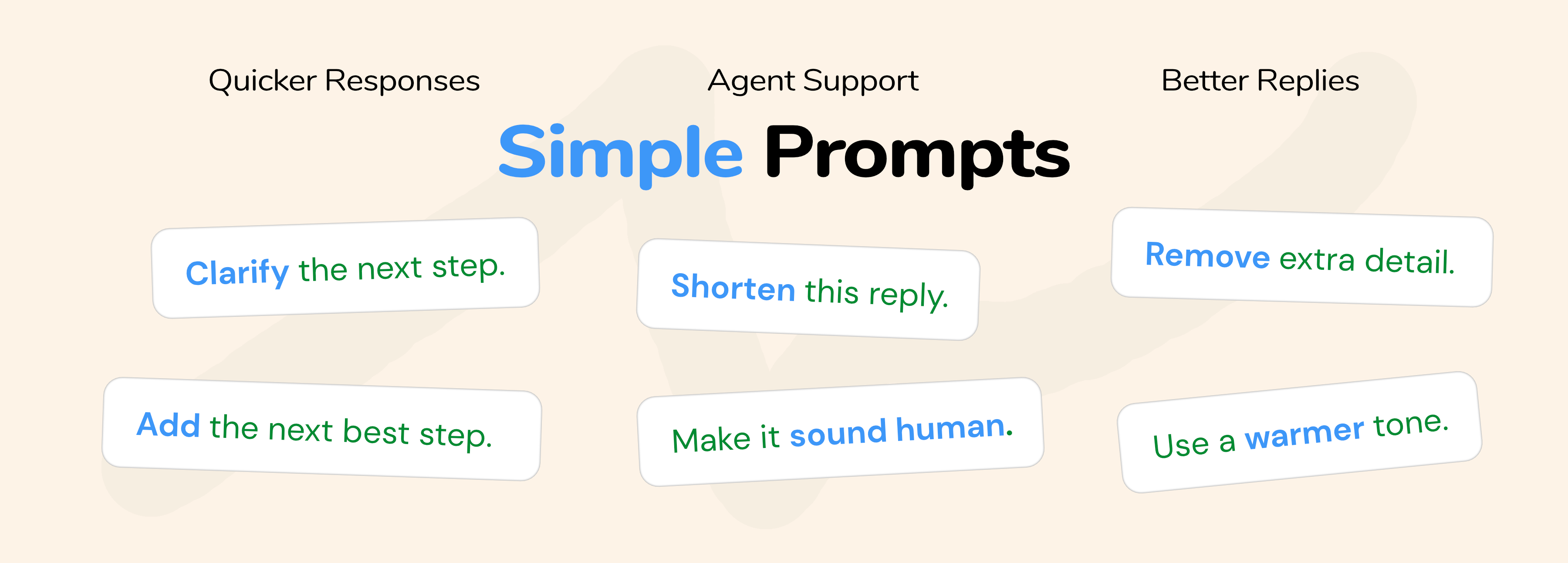
Lets you refine future responses with simple prompt instructions
Helps agents work faster with reply suggestions, next steps, and translations when needed
Grounds each reply in connected knowledge and available data
Keeps responses more consistent across similar tickets
What that unlocks

Faster first responses
More consistent answers across the team
Less repetitive manual work for agents
Easier scaling for repetitive support flows
Better team productivity
Lower support costs as volume grows
Better customer experience
Customer-service best practices built in
Stronger data security and compliance support (GDPR, ISO 9001, ISO 27001)
How it works
A customer request comes in
Flint reads the ticket context and surrounding details
It checks connected knowledge, docs, and backend systems
It determines the best response for that type of request
It replies to the customer automatically
If needed, you can refine future behavior with one prompt
Flint applies that guidance to similar requests going forward
If it cannot solve the ticket, it escalates to an agent
Common use cases
Handle repetitive customer questions automatically
Answer support requests using connected knowledge and backend data
Refine tone, structure, and response rules with simple prompts
Support agents with suggestions, next steps, and translations when needed
Set it up, connect your knowledge and systems, and let Flint handle repetitive requests while your team focuses on the exceptions.
Install
Click Install
Choose a plan
Put a description
Add context: PDF, Help Center
Ready
Data Disclosure
By using this app, you agree to our Terms of Use. Please review our data handling practices, AI usage policies, and your responsibilities at https://roca.work/flint-terms before proceeding.
Detalles de la aplicación
Cómo instalar
Prerequisite: You must have a Zendesk Support account with administrator access.
Log in to Zendesk Support as an administrator.
Open Admin Center, then go to Apps and integrations > Apps > Zendesk Support apps.
Click Install on Flint AI Agent.
During installation:
Review the required permissions.
Complete the in-app authorization to connect your Zendesk account.
Choose a plan when prompted.
Complete the installation.
Open any Zendesk ticket and open Flint AI Agent from the app sidebar. Add a short description of how you want Flint to behave, connect context (for example PDFs and Help Center), and let Flint handle repetitive requests while your team focuses on exceptions.
Dejar una evaluación
Comparte tu experiencia con el resto de la comunidad Zendesk